How to fix text in AI-generated images
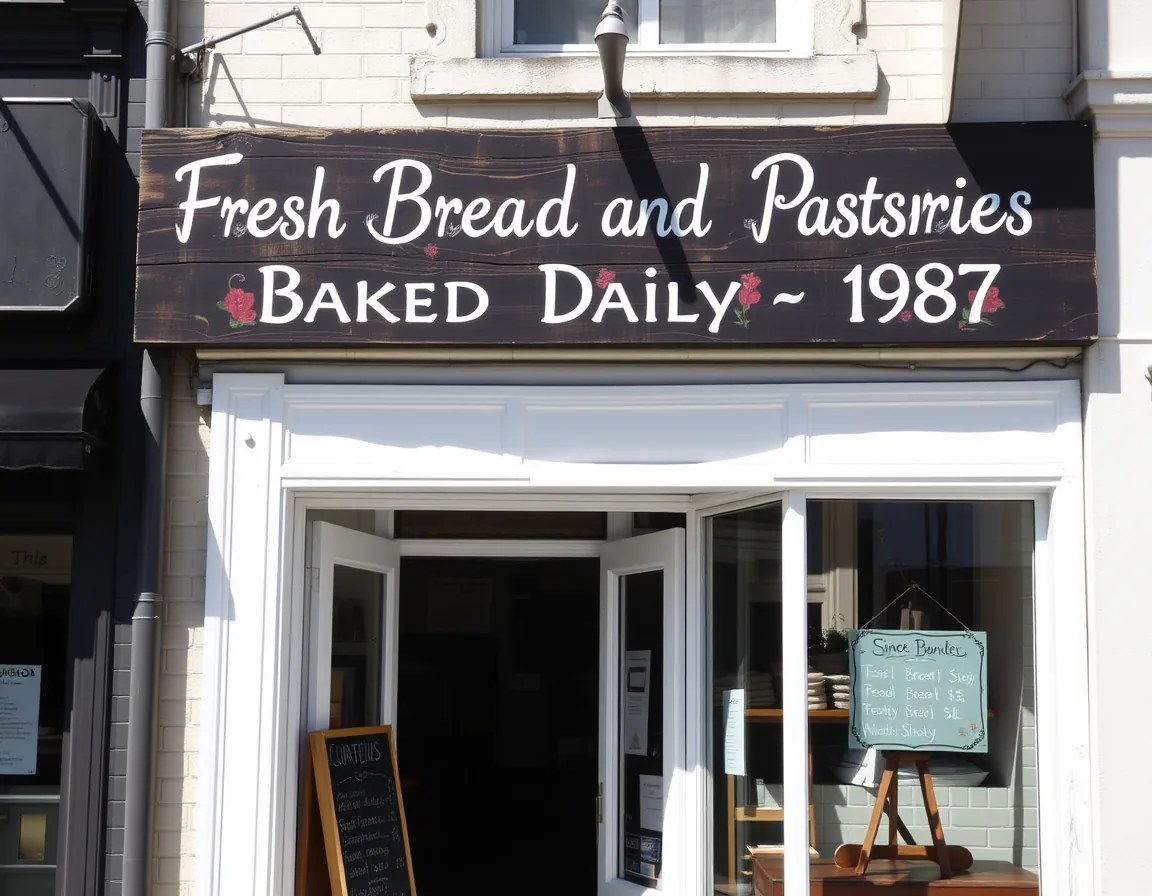
AI image generators are great at pictures and still unreliable at words: letters melt into each other, words come out misspelled, and signs fill up with gibberish. You have three ways to fix it. Regenerate with a tighter prompt, which is free but changes the rest of the image too. Edit just that area inside your AI tool, which can work but may misspell again. Or keep the image you like and correct only the words, either as a clean text layer or with AI match, which redraws the line in the image's own lettering. Here's when to use each.
Why AI gets text wrong in images
Image generators don't type letters. They paint shapes that look like text, learned from millions of pictures, so spelling is a side effect rather than a rule. That's why short, large, common words usually come out right, while long lines, small print, names and unusual words are where mistakes pile up. Newer models handle a short headline much better than older ones, but they still slip on anything longer.
Fix 1: Regenerate with a better prompt
If you don't mind the picture changing, a new prompt is the free fix. These help:
- Put the exact words in quotes, for example: a café sign that says "Open Late".
- Keep it short. A few words per line is far more reliable than a sentence.
- Ask for large, simple lettering, such as bold sans-serif, rather than tiny or ornate text.
- Say where the text goes, like "centred at the top", so it isn't squeezed into a corner.
The catch: every attempt redraws the whole image. If you finally liked the scene, the light or the face in the last version, you may lose it while chasing the spelling.
Fix 2: Edit just the text area in your AI tool
Many generators now let you select part of an image and describe a change, such as "change the sign to say Open Late". This keeps more of the picture, and it's worth one or two tries for short words. It's still the same model drawing the letters, though, so it can misspell again, and each try can shift the area around the text.
Fix 3: Correct the words in the image you already have
When the image is right and only the words are wrong, fix the words and leave everything else alone. PixText works in your browser, on a computer or phone:
- Download your AI image (JPG, PNG or WebP, up to 10 MB) and upload it to pixtext.io.
- PixText finds the lines of text in the image. Click the line with the wrong words.
- Type the correct words. The old letters are erased and the background behind them is rebuilt.
- Choose how the new words should look: a text layer or AI match (see the next section).
- Check the spelling at full zoom, then download a PNG. Downloads have no watermark; you need a free account to download.
If a badly garbled line isn't picked up as text, paint over it with the erase brush and add the correct words with the Text tool.
AI match or a text layer: which should you use?
Both start the same way: the wrong words are erased and the background is rebuilt. They differ in how the new words are drawn.
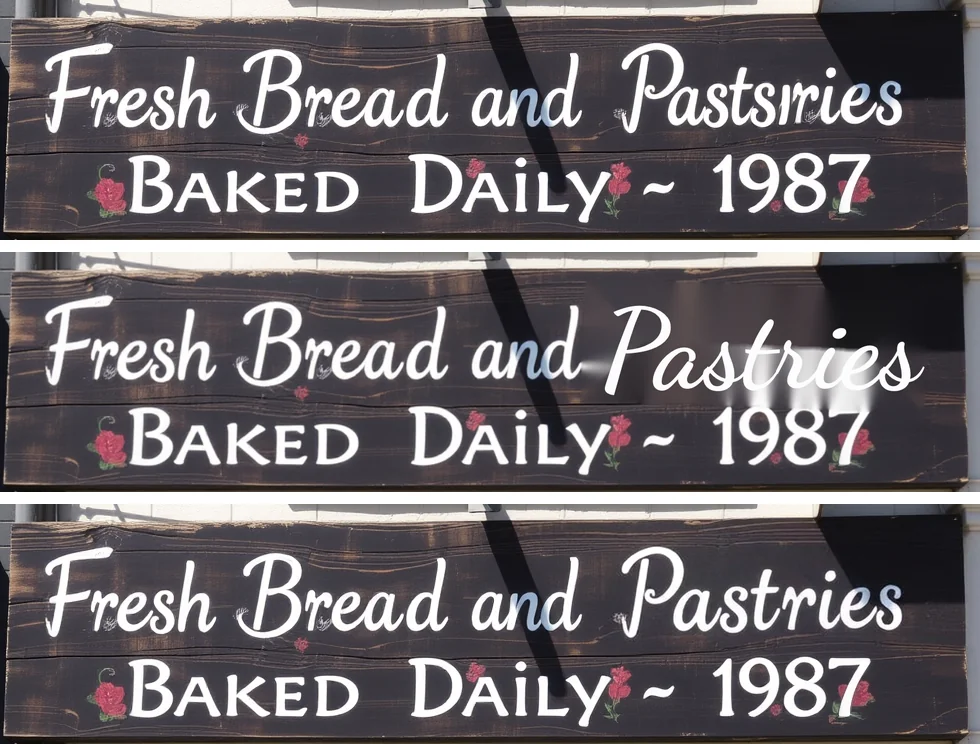
A text layerplaces your words on top in the closest of 47 built-in fonts, with size, weight, colour, outline and shadow you can change at any time until you download. It's crisp, predictable and free, with no daily limit. It's the right choice for clean, simple lettering.
AI matchredraws the line in the image's own lettering, following its shapes, texture, colour and angle, so the new words look like part of the picture. It matches the original style closely, but it's a redraw, so an identical match can't be guaranteed: check the spelling before you download. It works on one line of Latin-script text at a time, up to 80 characters. Sign in with Google for 1 free AI match a day; more come in one-time AI match packs. A line that can't be redrawn, or comes out clearly misspelled, doesn't use a match. If you'd rather have the editable layer back, undo the AI edit.
| The text in your image | Use | Why |
|---|---|---|
| Plain lettering: labels, captions, a menu, an interface | Text layer | Clean, sharp, and you can keep adjusting it |
| Stylised lettering: neon, chalk, 3D, painted signs, a logo | AI match | No font list has it; AI match follows the image's own style |
| Several lines or a paragraph | Text layer | AI match redraws one line at a time, and each line uses a match |
| Small, curved or slanted text | Text layer first | These are the hardest cases for AI match |
| Non-Latin scripts | Text layer | AI match supports Latin-script text only |
Not sure? Start with a text layer. If the lettering looks pasted on, undo and try AI match on that line.
Tips for a clean fix
- Keep the new words close in length to the old ones, so they fill the same space naturally.
- Fix the most visible line first, then decide whether the small print is worth fixing at all. Sometimes deleting a gibberish line looks better than rewriting it.
- Compare at full zoom against the letters around it before you download.
- If a soft patch shows where the old text was, brush over it once more with a slightly larger erase brush.