How to change text in an image without Photoshop
You don't need Photoshop to change the words in a picture. There are three practical ways to do it, and the right one depends less on the tool than on what sits behind the text.
The short answer
- Plain, single-colour background? Cover the old words with a matching shape and type over it. Any design app can do this in a minute.
- Busy background, and you have time? Use a free editor like GIMP to paint the old letters away, then add new text.
- Busy background, and you want it fast? Use an AI text editor that erases the old words and rebuilds the background for you.
What decides whether the result looks natural
Two things, mostly:
- The background behind the letters. Text on a flat colour is easy to replace. Text on a gradient, a texture like brick or fabric, or a photo is harder, because whatever was hidden behind the letters has to be rebuilt.
- The font.New words only blend in if the font, size, colour and angle are close to the original. Most tools can't identify the exact font, so you're usually matching by eye.
Keep both in mind as you read the three methods below.
Method 1 — Cover the old text and retype it
This works in almost any design app — Canva, Google Slides, PowerPoint, even the markup tool on your phone.
- Open the image and draw a rectangle over the words you want to change.
- Use the colour picker to match the rectangle to the background right next to the text.
- Add a new text box on top and type your words.
- Pick the closest font you can find, then adjust size, colour and spacing until it lines up.
Works well for: flat backgrounds — buttons, banners, slides, simple graphics.
Falls short on: gradients, textures and photos. The rectangle shows up as a solid patch, and the eye spots it immediately.

Method 2 — Use a free photo editor like GIMP
GIMP is a free, open-source photo editor that can do most of what Photoshop does for this job.
- Select the old text area.
- Use the Heal or Clone tool to paint over the letters with nearby background, a few strokes at a time.
- Add your new words with the Text tool and match the font, size and colour.
- Export the result as PNG or JPG.
Works well for:any background, if you're patient — you control every pixel.
Falls short on: speed and skill. Rebuilding a textured background by hand can take a while, and it takes practice to make it look seamless.
Method 3 — Use an AI text editor
AI text editors do the erasing and background rebuilding for you, then let you type the new words on top. Here's how it works in PixText:
- Upload your image (JPG, PNG or WebP, up to 10 MB). PixText finds the text automatically.
- Click the line you want to change, type the new words and press Enter. On a phone, tap the line, type in the box at the bottom and tap Done.
- The old words are erased and the background behind them is rebuilt. Your new text sits on top as a layer you can move and restyle — font, size, weight, colour, angle, outline and shadow.
- If any marks are left behind, choose ERASE and paint over them. Then download your image as a PNG.
The free plan covers 3 images a day.
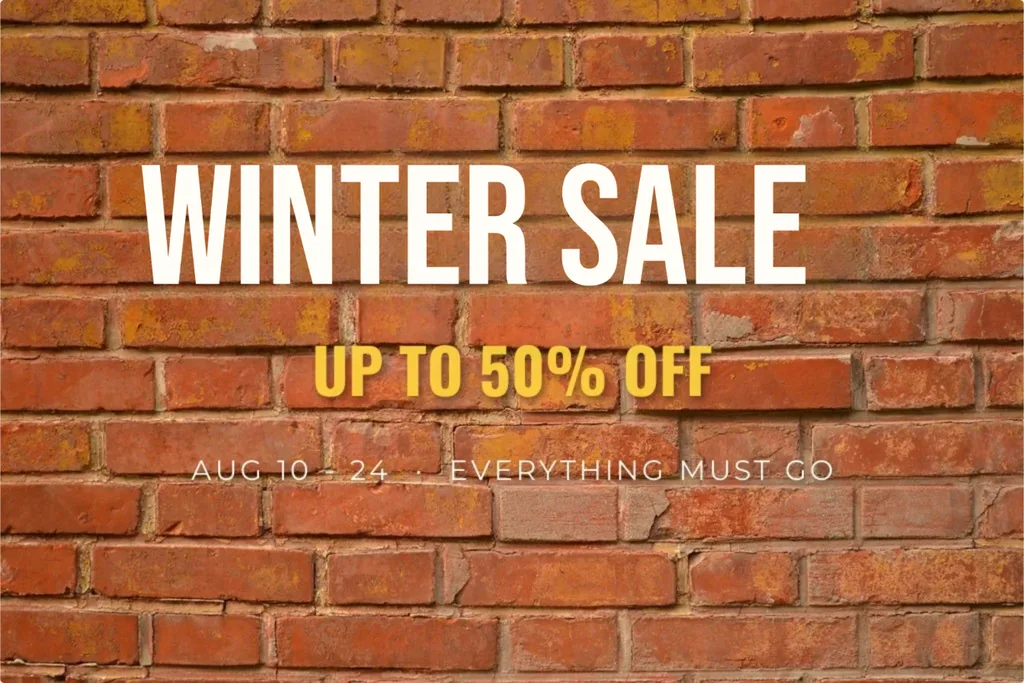
Honest limits:very busy textures can still leave a faint mark (that's what the erase brush is for); PixText suggests the closest match from its built-in fonts rather than the exact original; and the built-in fonts are made for Latin letters.
Canva also has a feature for this, called Grab Text. It turns text in a photo into editable text boxes. According to Canva's help page, it's available on eligible plans, works only with Latin text, doesn't support rotated or arched text, and can sometimes leave small traces of the old text.
Which method should you use?
| Cover and retype | Free editor (GIMP) | AI text editor | |
|---|---|---|---|
| Best for | Flat, single-colour backgrounds | Any background, if you have time | Busy backgrounds, quick fixes |
| Skill needed | Low | Medium to high | Low |
| Time | A minute or two | Often much longer | Usually under a minute |
| Background | Covered with a solid patch | Rebuilt by hand | Rebuilt automatically |
| Font match | By eye | By eye | Closest built-in match, adjustable |
| Cost | Free in most apps | Free | Varies — PixText's free plan covers 3 images a day |
Tips for a result nobody notices
- Match the size first, then the font. A slightly different font at the right size looks more natural than the right font at the wrong size.
- Copy the colour from the original letters, not from memory — use a colour picker if your tool has one.
- Check the angle. Text on signs and packaging is often slightly tilted; straight new text on a tilted surface gives it away.
- Zoom in before you download. Look for faint outlines of the old letters and clean them up.
- Keep the original. Save your edit as a new file so you can always start again.
Use it honestly
Changing a typo, a price on your own flyer or a date on your own poster is exactly what these tools are for. Changing official documents, receipts, IDs or other people's messages to mislead someone is not — it can be illegal, and it's against our acceptable use policy.