How to edit text in a screenshot
A screenshot is just a picture. The words in it aren't text you can click and retype — they're pixels. That's why the built-in tools on your phone or computer can add new text on top, or black words out, but can't swap one word for another. Here's what each one can do, and what to use when you need to actually change the words.
The short answer
- If it's your own content, the cleanest fix is to change the original and take the screenshot again.
- Built-in tools (iPhone Markup, Windows Snipping Tool, Mac Preview) can cover or black out text and add new text on top — fine on plain backgrounds.
- To replace the words so it looks untouched, use a tool that erases the old text and rebuilds the background, like PixText.
The easiest fix: change the source and re-take it
If the screenshot shows your own document, slide, spreadsheet or app screen, edit it there and take a fresh screenshot. It's free, it's exact, and the font will match perfectly. The methods below are for when you only have the image.
On iPhone or iPad
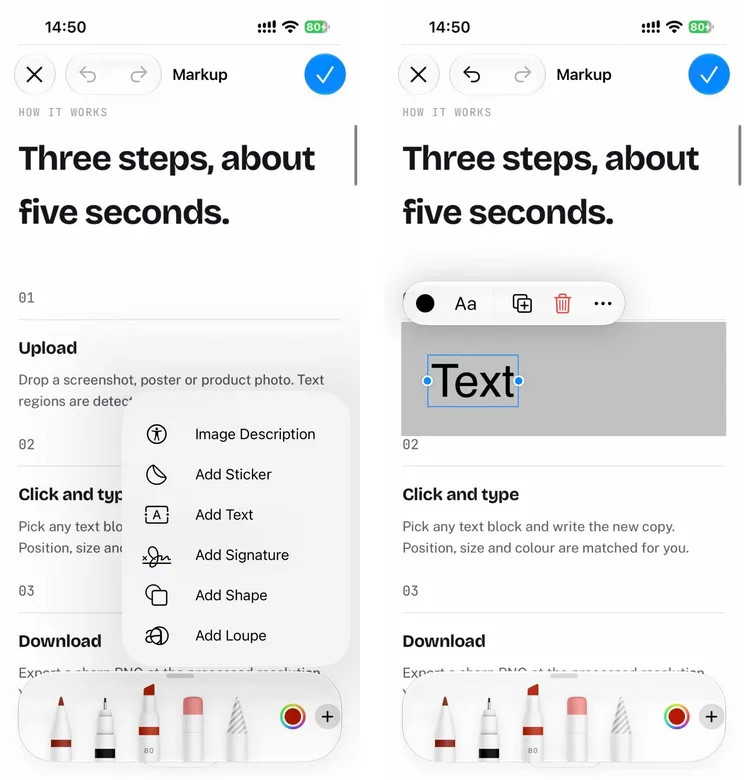
The Photos app's Markup tool lets you draw, add shapes and add text — but it has no way to change the words already in a screenshot.
- Open the screenshot in Photos and tap Edit, then Markup.
- Tap the + button and choose Add Shape. Change its colour to match the background and place it over the old words.
- Tap + again, choose Add Text, type your new words and adjust the font, size and colour.
- Tap the ✓ button to finish.
Tip: if you only need the words themselves (to paste somewhere else), touch and hold the text in the screenshot to copy it with Live Text.
On Android
Most Android phones open screenshots in Google Photos or the phone maker's gallery app. These include drawing and text tools, and many include an AI eraser (Google Photos calls it Magic Eraser).
- Open the screenshot and tap Edit.
- Try the eraser on the old words. On plain backgrounds it can work; on text it's hit or miss and often leaves a smudge.
- Use the markup or text tool to type the new words on top.
Menus and feature names differ between phone brands and app versions, so look for Edit, then Markup or Tools.
On Windows
Windows 11's Snipping Tool can find the text in a screenshot with Text actions — useful for copying it, or for blacking out email addresses and phone numbers with Quick redact. It can't replace words.
To cover and retype instead:
- In Snipping Tool, choose Edit with Paint.
- Use the colour picker on the background, then draw a filled rectangle over the old words.
- Use the Text tool to type the new words, then save.
On Mac
Preview has a Markup toolbar for adding shapes and text boxes.
- Open the screenshot in Preview and click the Markupbutton if the toolbar isn't showing.
- Add a shape, change its colour to match the background and drag it over the old words.
- Click the Text tool, type your new words and drag the box into place.
Note: once you save the image, these annotations can't be moved or edited again — keep a copy of the original.
Replace the words cleanly online
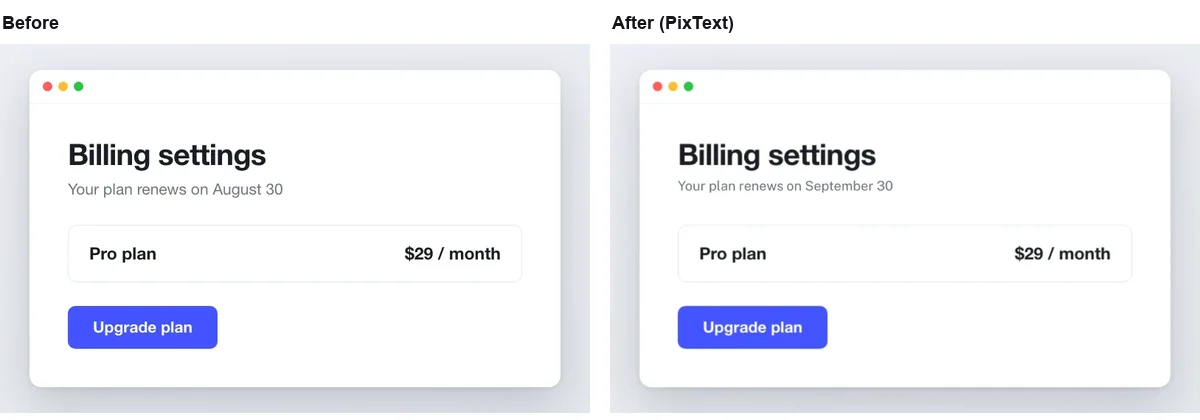
Covering works on plain backgrounds, but on gradients, photos or patterned app backgrounds the patch shows. To make it look untouched, the old words need to be erased and the background rebuilt. In PixText:
- Upload the screenshot. PixText finds the text automatically.
- Click (or tap) the line you want to change and type the new words.
- The old words are erased and the background rebuilt; your new text is a layer you can move and restyle.
- Download the result as a PNG.
It works in your computer's or phone's browser, and the free plan covers 3 images a day. Edit text in a screenshot →
A note on privacy
Screenshots often include names, messages, email addresses or account details. Before you upload one anywhere, check what's in it. In PixText, images are processed in memory and never written to disk, and each editing session is cleared within 24 hours.
Use it honestly
Fixing a typo in your own slide or updating a number in your own report is fine. Changing chat messages, payment confirmations, receipts or other people's posts to mislead someone is not — it can be illegal, and it's against our acceptable use policy.