How to add text to a photo on iPhone and Android
Both iPhone and Android can add text to a photo with the editor that's already on your phone, no app to download. It takes under a minute: open the photo, tap Edit, find the text tool, type. The built-in tools are fine for a quick caption. When you want more fonts, an outline or shadow that reads on a busy photo, or to change words that are already in the picture, use a browser editor instead. Both ways are below.
On iPhone: use Markup in Photos
The Photos app's Markup tool adds text, shapes and drawings on top of any photo.
- Open the photo in Photos and tap Edit.
- Tap Markup (the pen icon).
- Tap the + button and choose Add Text.
- Tap the text box, type your words, then use the bar at the bottom to change the font, size, alignment and colour.
- Drag the box to where you want it, tap outside it, then tap Done (and Done again if asked).
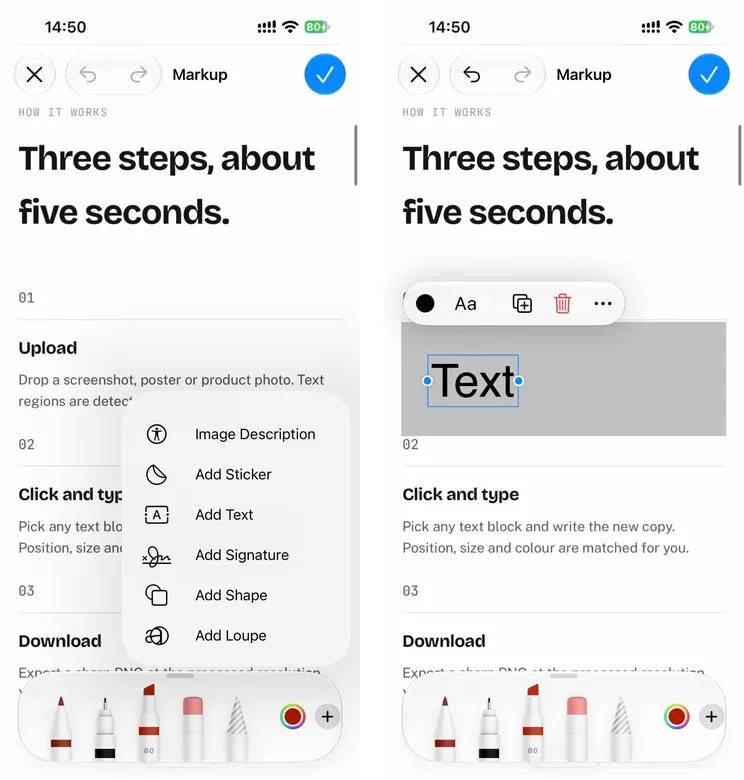
Photos keeps your original. If you change your mind later, open the photo, tap Edit, then Revert.
Good to know:Markup offers only a few fonts and no shadow, so white text can disappear on a bright sky. And it can only add text on top; it can't change words that are already in the photo.
On Android: Google Photos or Samsung Gallery
Most Android phones open pictures in Google Photos or the phone maker's gallery app. Both can add text.
Google Photos
- Open the photo and tap Edit.
- Tap Markup. If you don't see it, tap Tools, then Markup.
- Tap Text and type your words.
- Swipe through the font styles, set the alignment, and add a background fill or outline if you need contrast.
- Touch and hold the text to drag it into place, tap Done, then Save as copy to keep the original untouched.
Samsung Gallery (Galaxy phones)
- Open the photo and tap the pencil (Edit) icon.
- Tap the Decorations icon (a smiley face) and choose Text.
- Type, pick a style and colour, drag the text into place, then tap Save.
Menu names change between phone brands and app versions. If you can't find the text tool, look for Edit, then Markup, Tools or Decorations.
What the built-in tools can't do
Phone editors are made for quick notes, not designed text. You'll run into these limits:
- Few fonts. A handful of styles, none of them display or script fonts.
- Limited contrast tools. Google Photos offers a background or outline; iPhone Markup has neither. Text over a busy photo is often hard to read.
- No way to change existing words.New text sits on top of the photo. To fix a word that's already in the picture, you have to cover it with a shape first, which rarely matches the background.
- Results differ by phone.The same steps look different on every brand and version, so it's hard to repeat a look.
Add text in your phone's browser with PixText
PixText is a free photo text editor that runs in Safari or Chrome on your phone, so there's still nothing to install.
- Open pixtext.io/add-text-to-image, tap Upload image and pick the photo from your library.
- The TEXT tool is ready: tap where the words should go and type.
- Choose from 47 fonts, set the size, weight and colour, and add an outline or shadow so the words stand out. You can also tilt the text.
- Drag it into place. Each line stays an editable layer until you download.
- Tap Download to save a PNG. It's free to start, with no watermark; downloading needs a free account.
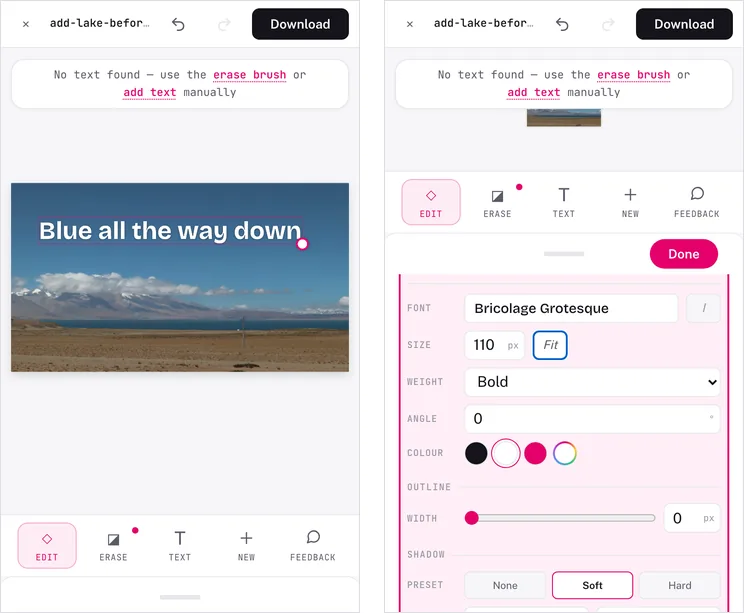
Changing words that are already in the photo? Tap the detected text instead, type the new words, and PixText erases the old letters and rebuilds the background behind them. Sign in with Google for 1 free AI match a day, which redraws a line in the photo's own lettering and matches the original style closely.
Which should you use?
| You want to… | Use |
|---|---|
| Add a quick caption or date | Your phone's built-in editor |
| More fonts, an outline or a shadow | PixText in your browser |
| Change words already in the photo | PixText (tap the text) |
| The same look on iPhone and Android | PixText, which works the same on both |