Free plan · 3 images a day
Add Text to Any Photo
Click anywhere on your picture and type. Pick a font, add an outline or a shadow, tilt it, then download with no watermark.
Watch it work — or click the photo to take over
DESERT CAMP
Under the stars
Night tours from $49
How it works
Text on your photo in three steps.
01
Upload or paste
Drop a JPG, PNG or WebP, or paste straight from your clipboard. Any text already in the picture is detected too, in case you want to change or clear it.
02
Click and type
The TEXT tool is ready when the image opens: click where the words should go. Type in the panel, drag the text into place, and set the font, size, weight, colour and angle.
03
Download
Export a PNG at the processed resolution, up to 4096 px on the long edge. No watermark, on the free plan too.
Before / After
Same photo. Your words on it.
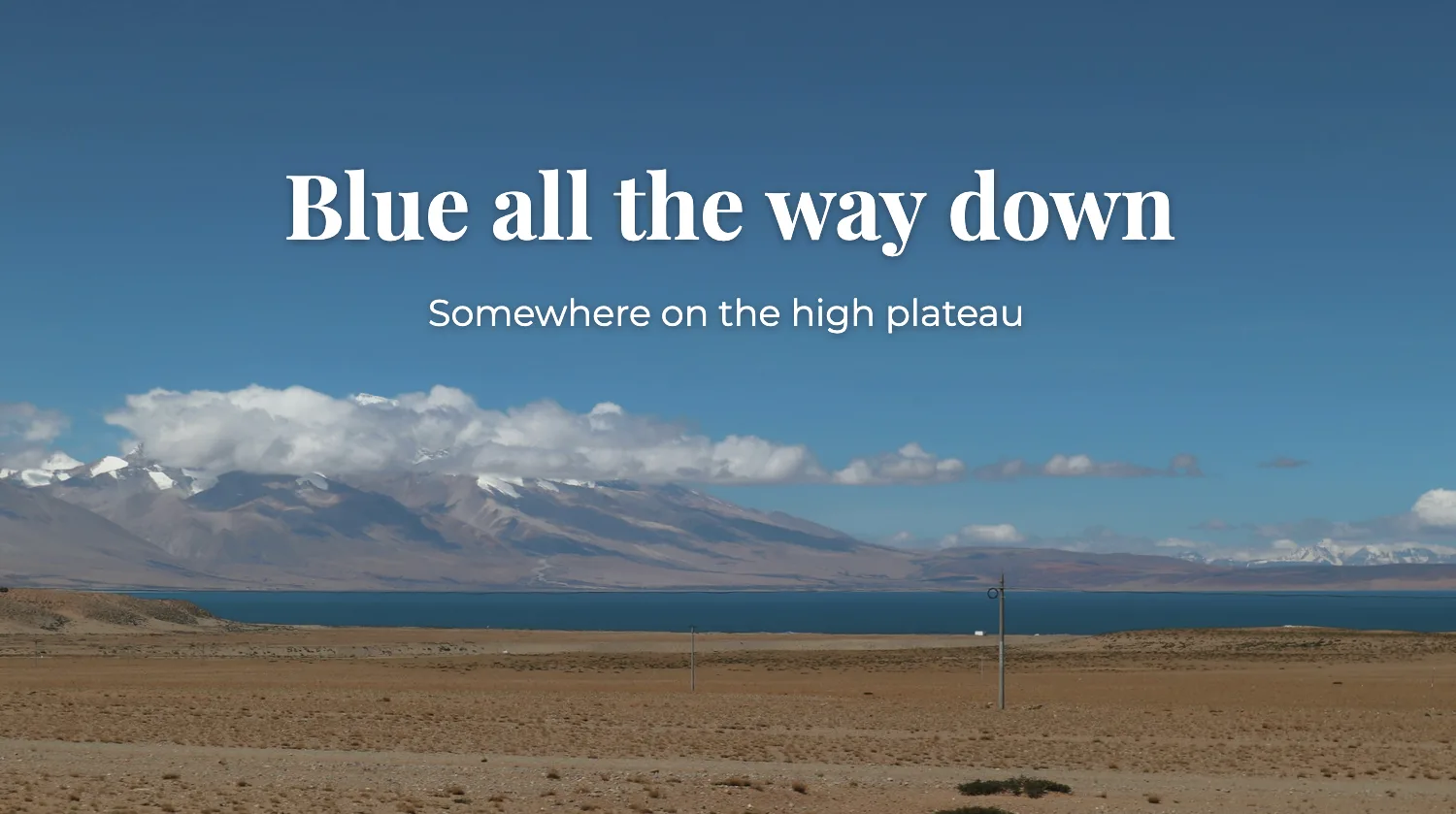
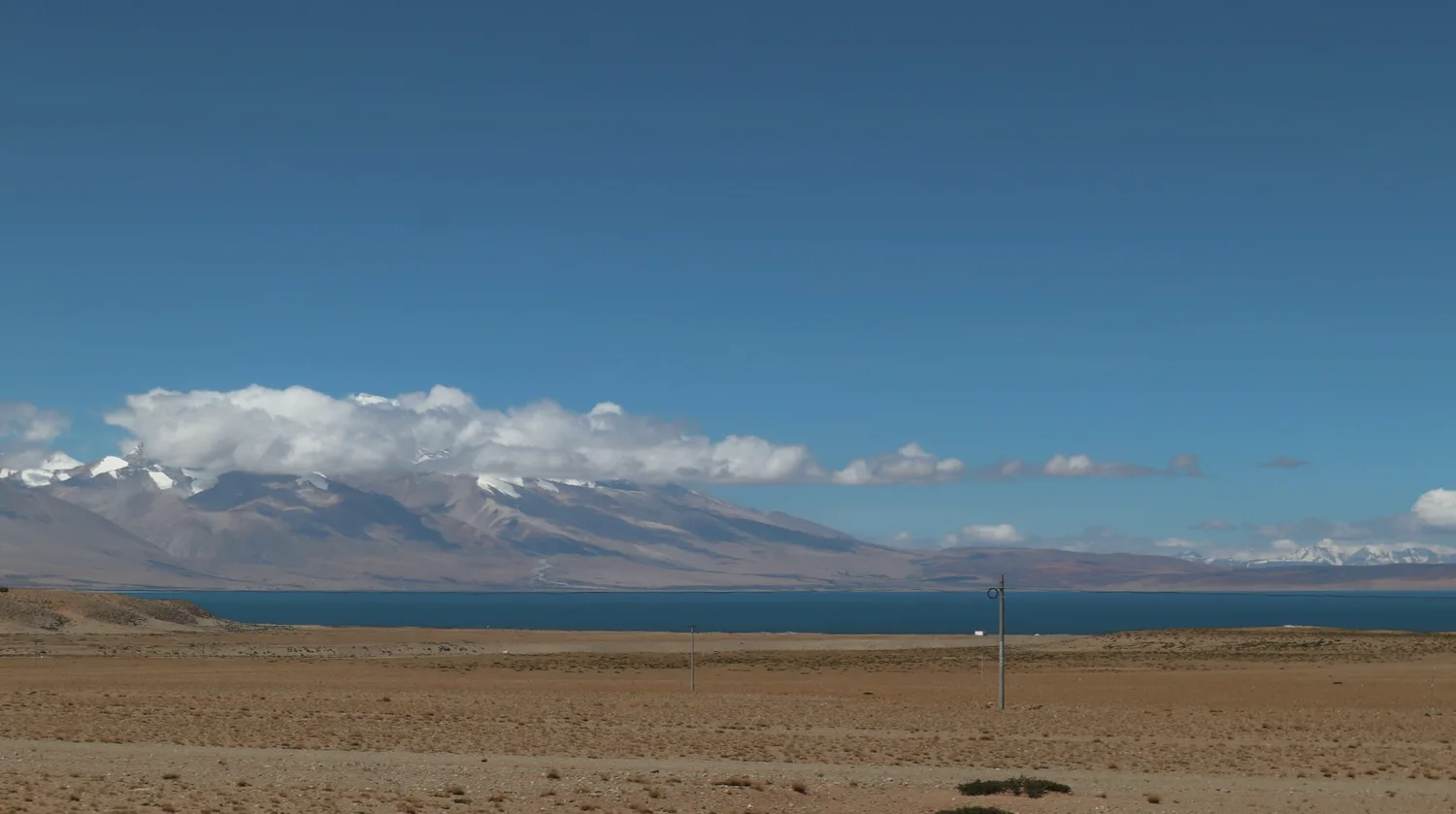
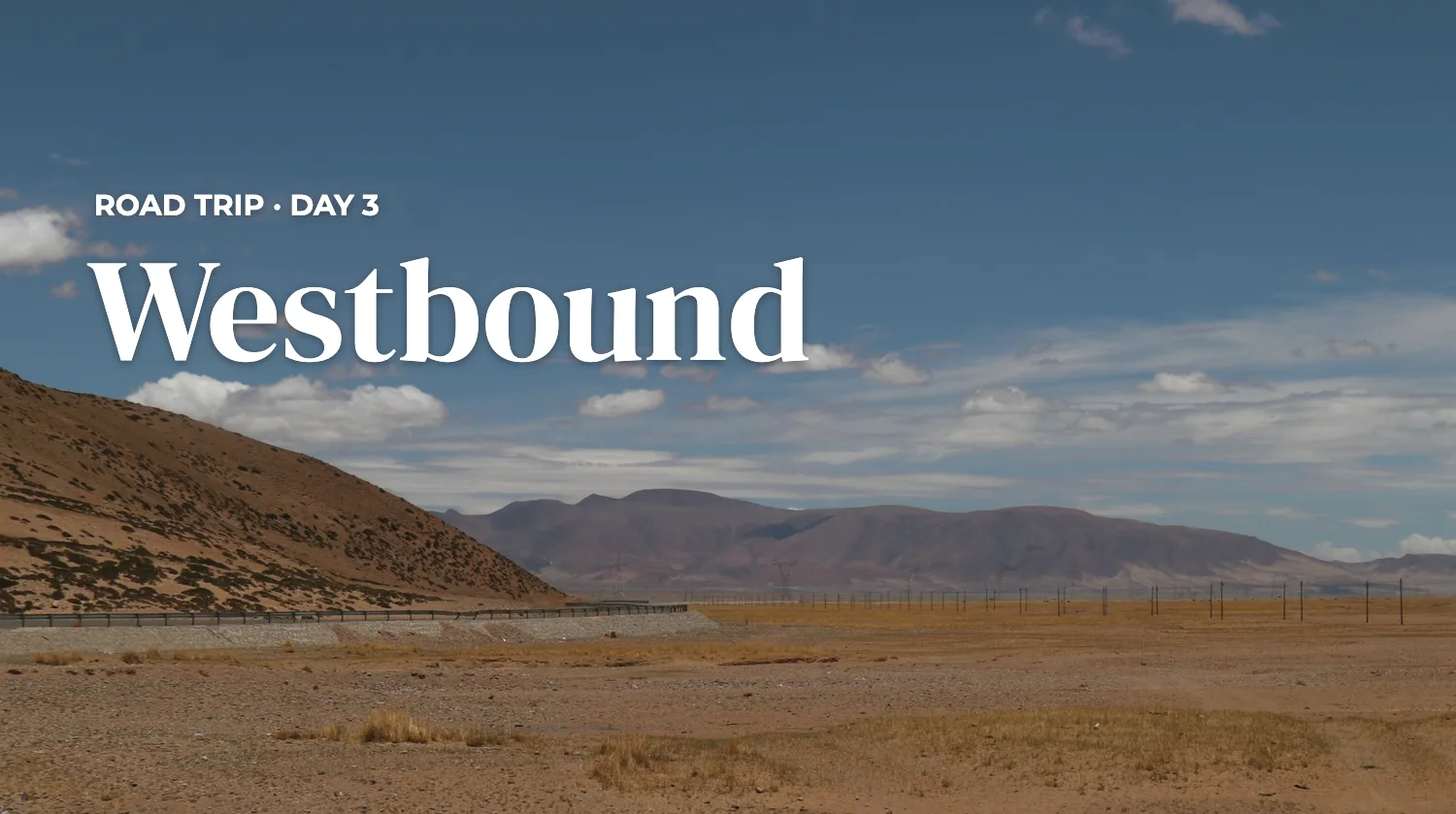
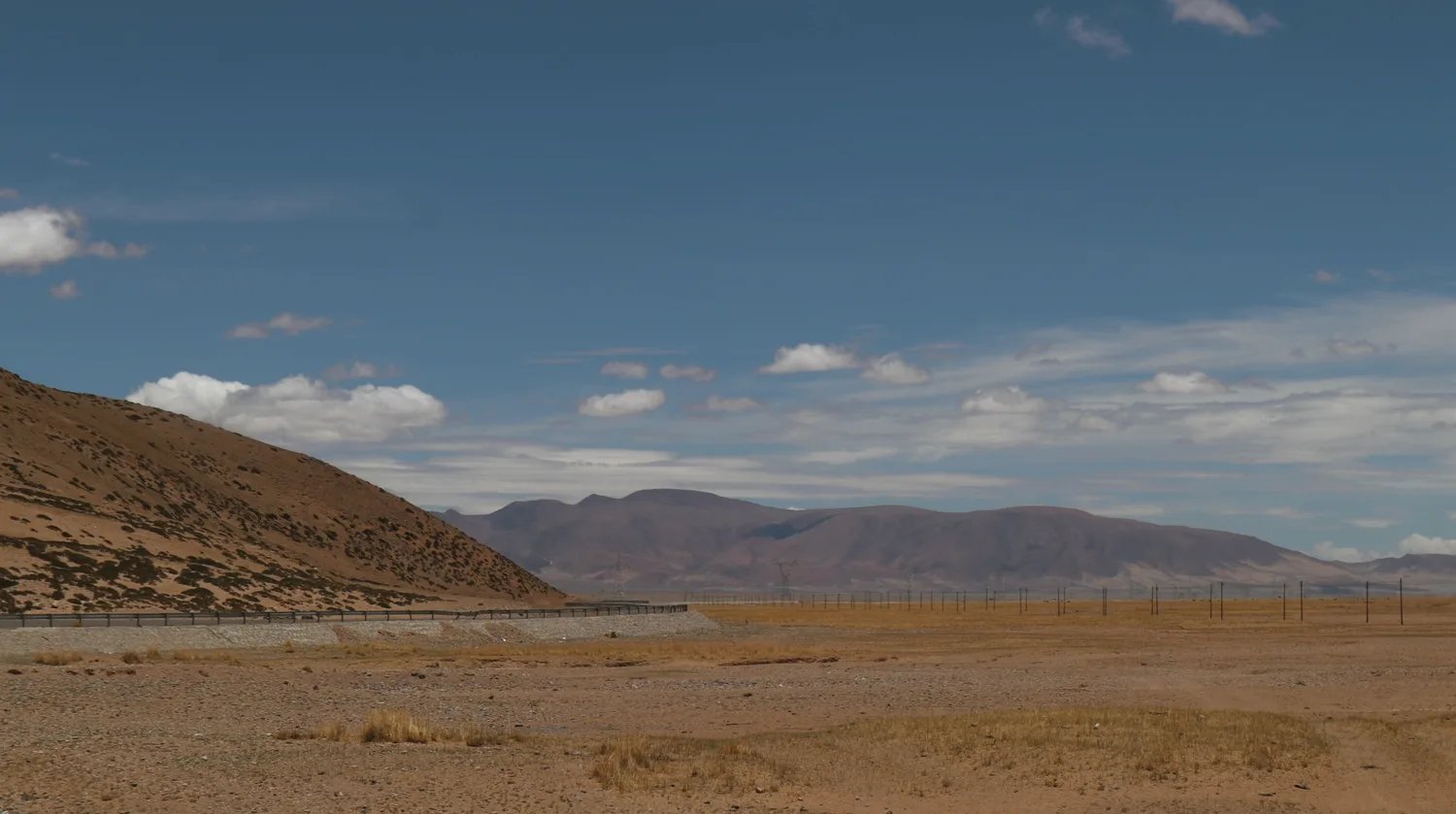
Drag the handle: real exports from the PixText editor, on our own photos
Use cases
What people put on their photos.
Short text that has to be read at a glance works best. The most common jobs:
Captions & quotes
A line under a travel photo, a quote over a sunset, names on a group shot.
Prices & offers
Put a price, a discount or an end date on a product photo before you post it.
Titles & thumbnails
Big, outlined words for video thumbnails and social posts that stay readable on a phone.
Labels & credits
Name a dish, a room or a step in a how-to, or add your own name to a photo you took.
Readable text
Make text readable on a busy photo
Text on a photo fails for one reason more than any other: it blends into the picture. White words disappear into a bright sky, and dark words sink into shadows. The fix is contrast, and the panel gives you four ways to get it.
- Outline — A thin dark outline around white text, or the reverse, keeps every letter readable on any background. This is the classic meme and thumbnail look.
- Shadow — Soft lifts the words gently off the photo. Hard gives a crisp offset that still reads at small sizes.
- Weight and size — Bold, larger text survives being shrunk into a phone feed. Thin text needs a calm background behind it.
- Placement — Put the words where the photo is quiet: open sky, a plain wall, an empty table. Drag the text there before you style it.
Check the result at the size people will see it. Zoom out until the image is as small as it will appear in a feed. If you can still read it, it works.
Add or replace
New text on top, or the old text gone first
Most add-text tools can only put words on top of a picture. That is fine for a photo with nothing written on it. It falls apart when the picture already says something you want to change: a new price typed over an old one just leaves two prices.
PixText detects the text that is already in your image when you upload it. Click an old line to retype it in place, or paint over it with the erase brush, and the background behind it is rebuilt. Then add your own words wherever you like. Both jobs happen in one editor, on one image, in one download.
Fonts
47 fonts for captions, titles and memes
The fonts are grouped so you can find a style fast: Sans, Rounded, Display, Condensed, Serif, Slab, Script, Handwriting and Mono. Every name in the list is drawn in its own typeface, so you see what you are picking.
- Meme captions — Anton is a free stand-in for Impact. Set it in white with a black outline.
- Titles — Bebas Neue, Oswald and League Gothic are tall and narrow, so big words fit across the image.
- Personal notes — Caveat, Patrick Hand and Kalam look handwritten. Great Vibes and Dancing Script suit invitations and cards.
- Clean labels — Inter, Roboto and Open Sans stay clear at small sizes.
The fonts cover Latin-script languages such as English, Spanish, French and Indonesian. You can type other scripts as well, but they fall back to a system font, and the editor tells you when the chosen font is missing a character.
Limits
What it doesn't do (yet)
PixText is built around the text in a picture, not around designing from a blank page. A few things it leaves to other tools:
- No background band or transparency — Text sits straight on the photo; use an outline or a shadow to keep it readable.
- One style per box — A box has one font, size and colour. For a single word in another colour, use a second box.
- No curved text, stickers or templates — For a layout built from scratch, a design app is the better fit.
- Files up to 10 MB — JPG, PNG and WebP. Images over 4096 px on the long edge are scaled down to that size.
FAQ
Questions, answered.
How do I add text to a photo?
Upload the photo, choose the TEXT tool and click where the words should go. Type your text in the panel, drag it into place, then set the font, size, colour, outline and angle. Download when you're done.
Is it free, and is there a watermark?
The free plan includes 3 images a day, and downloads carry no watermark. You'll need a free account to download.
Can I add more than one piece of text?
Yes. Every click with the TEXT tool adds a separate text box with its own font, size and colour. Duplicate copies a box together with its style.
Can I write more than one line?
Yes. Press Enter in the text box to start a new line, and set the lines to align left, centre or right.
How do I make text stand out on a busy photo?
Add an outline in a contrasting colour, or a shadow. A bolder weight and a larger size help too, and so does placing the words over a plain part of the picture.
Can I rotate the text?
Yes. Set any angle from -180° to 180° in the panel.
Can I change text that's already on the image?
Yes. Text in the picture is detected when you upload it. Click a line to retype it in place, and the background behind the old words is rebuilt. To take words out without replacing them, use the erase brush.
Will my photo lose quality?
The download is a PNG at the processed resolution. Images over 4096 px on the long edge are scaled down to 4096 px before editing.
Can I type in languages other than English?
Yes. The built-in fonts cover Latin-script languages. Other scripts can be typed but fall back to a system font, and the editor warns you when a character is missing from the chosen font.
Is my photo kept private?
Images are processed in memory and never written to permanent storage. Sessions clear within 24 hours, and images are never used for training.
Put your words on the picture.
Free plan: 3 images a day. No watermark.
Upload an image